Filtering and Grouping Activities
Filter Activities by Type or Attribute Value
You can set filters on the activity hierarchy to display only activities that match criteria of your choice. You can filter by:
-
Activity type (or type group), for example to only view activities of a specific type
-
Attribute value, for example to only view activities that have a specific value for an attribute
You can specify filters using either or both of these criteria types.
To filter the activity hierarchy, follow these steps:
-
In Uptempo, click Activities in the sidebar to view the activity hierarchy.
-
Click
 Filter Activities.
The Filter by panel opens.
Tip
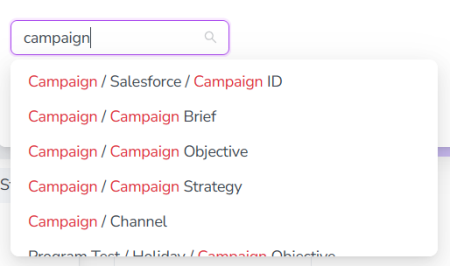
You can type keywords into most of the fields in the Filter by menu to narrow down the list of selections:
-
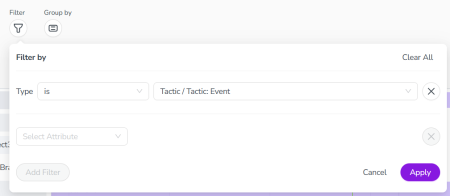
To filter by specific activity types or type groups, use the Type filter. On the line labeled Type:
-
Use the Select Condition menu to choose an operator:
-
is: Allows you to specify a single activity type or type group.
-
is one of: Allows you to specify multiple activity types or type groups.
-
-
Use the Set a Value menu to choose the type or types:
-
If you chose the operator is: Click the activity type or type group you want to view. The selected activity type is displayed in the Set a Value field.
-
If you chose the operator is one of: Use the checkboxes to select activity types or type groups. Selected activity types are displayed in the Set a Value field.
Note:
Activity type groups are displayed with a > symbol. Hover or click the symbol on an activity type group to view and select specific activity types within it.
-
-
-
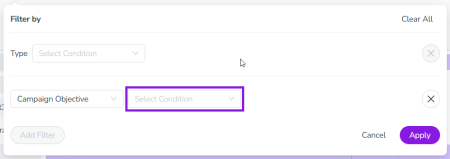
To filter by any available attribute (e.g. Name, In-Market Date, etc.), use the Select Attribute menu to choose the attribute you want.
After you choose an attribute, the Select Condition dropdown menu is shown:
-
Use the Select Condition menu to choose an operator:
-
is: Allows you to specify a value for the attribute. To be displayed, attributes must have a value for the selected attribute that exactly matches the specified value.
If you choose this operator, use the Set a Value field that is shown to specify the value.
-
is empty: To be displayed, activities must have no value for the selected attribute.
-
is not empty: To be displayed, activities must have a value for the selected attribute.
-
contains: Allows you to specify a value for the attribute. To be displayed, attributes must have a value for the selected attribute that contains the specified value. If you choose this operator, use the Set a Value field that is shown to specify the value.
-
-
Optional: To add multiple attribute filter conditions, click the Add Filter button.
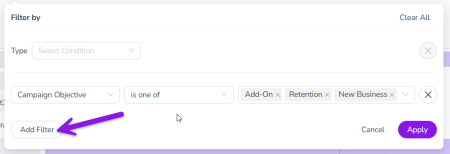
Another Select Attribute dropdown menu is displayed on a new line. Repeat steps 4 and 5 to configure the added filter condition. If you specify multiple attribute conditions, they will be treated as AND conditions (all specified conditions must be met).
Note
The Add Filter button will be deactivated if any existing attribute filters have not yet been fully configured.
-
If you want to remove any filter condition you have added, click the × Remove Condition button beside it.
-
To apply the filter conditions you have set to the activity hierarchy, click Apply.


The Filter by panel closes, and the activity hierarchy is filtered according to the filter conditions you have set.
Whenever any filters are active, the Filter Activities button changes to display the number of filters currently applied:

Group Activities by Attribute Value
You can group activities in the hierarchy based on the value of a specified attribute. For example, if you set a grouping based on the attribute Channel, this creates one grouping for activities with the value Social Media, another grouping for activities with the value Email, etc.
To group activities based on an attribute, follow these steps:
-
Click
 Group Activities.
 -
Use the Group by menu to select the attribute you want to group by:
-
To apply grouping using the selected attribute, click Apply.
The Group by panel opens.
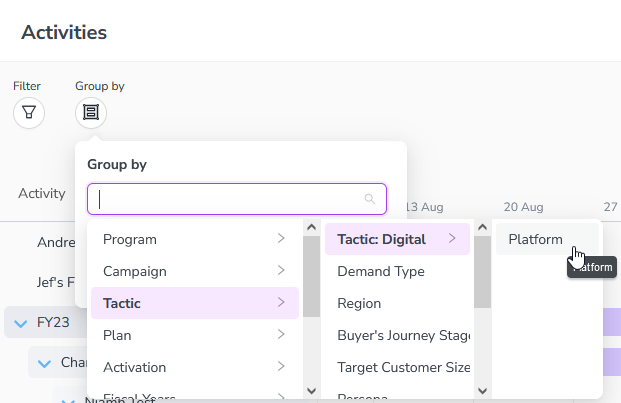
Select an item in the dropdown or enter a keyword to search the dropdown.
The Filter by menu closes, and the activity hierarchy is grouped according to the selected attribute.
When grouping is active, the Group Activities button changes to reflect the grouping attribute that is currently applied: